


USC Annenberg Classroom Zoom Room User Guide
USC Annenberg launched new audio/visual technology in its classrooms in Fall 2025, utilizing Zoom’s infrastructure to provide an easy-to-use and familiar interface for faculty and students.
This guide goes through common workflows and frequently asked questions.
Quick Start Guide
Detailed User Guide
Start a Scheduled Meeting
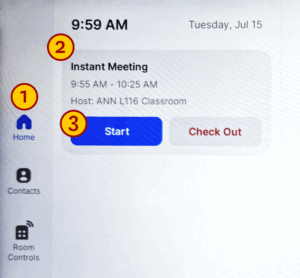
- Tap the Home icon on the menu bar.
- Tap your scheduled topic on the meeting list.
- Tap Start to start the meeting
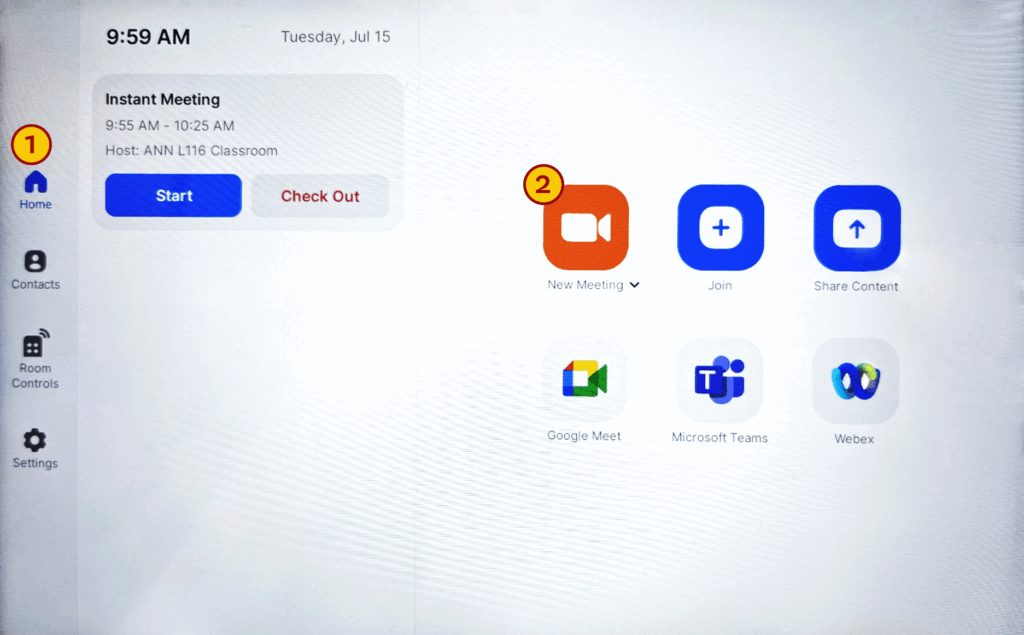
Start an Instant Meeting
- Tap the Home icon on the menu bar.
- Tap New Meeting on the Home screen to start an instant meeting.
Join a Meeting
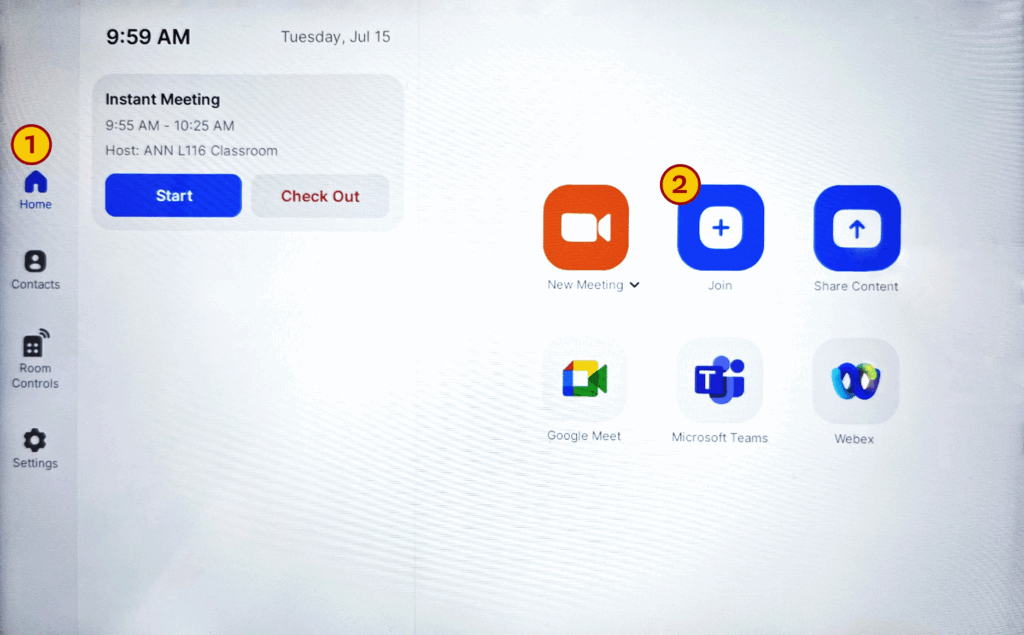
- Tap the Home icon on the menu bar.
- Tap the Join icon on the Home screen.
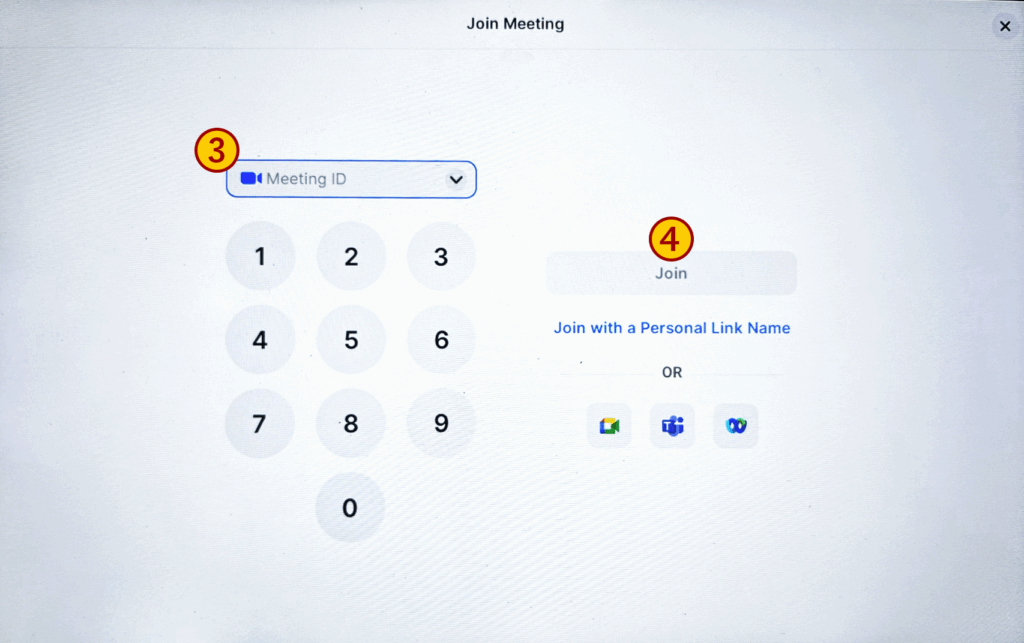
- Enter the Meeting ID.
- Tap Join to start the meeting.
Call a Contact
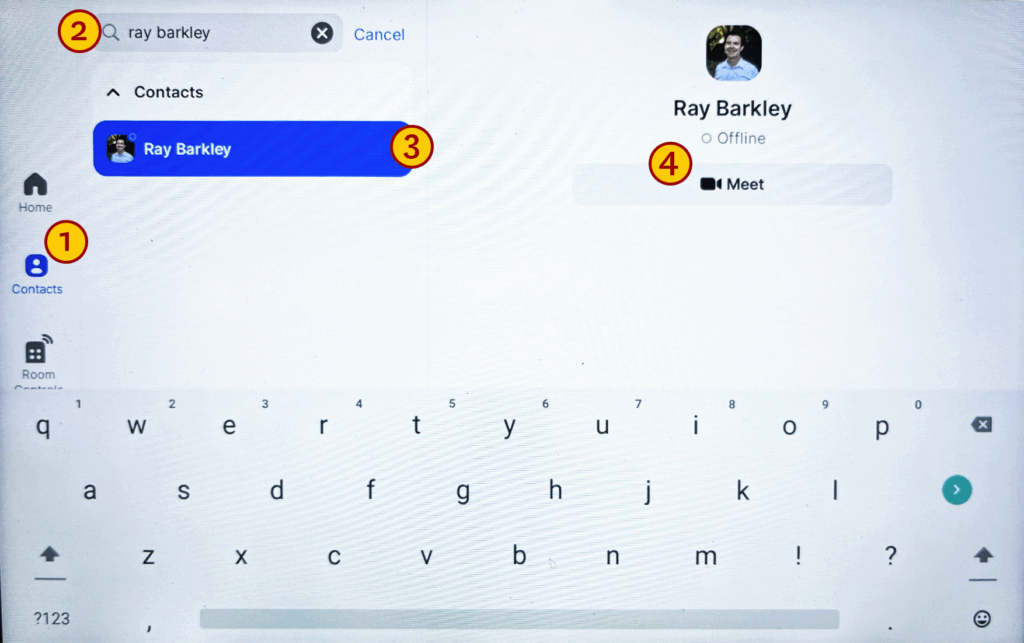
- Tap the Contacts icon on the menu bar.
- Enter a contact’s name in the search bar.
- Select the contact.
- Tap Meet to make a call.
Share Your Screen
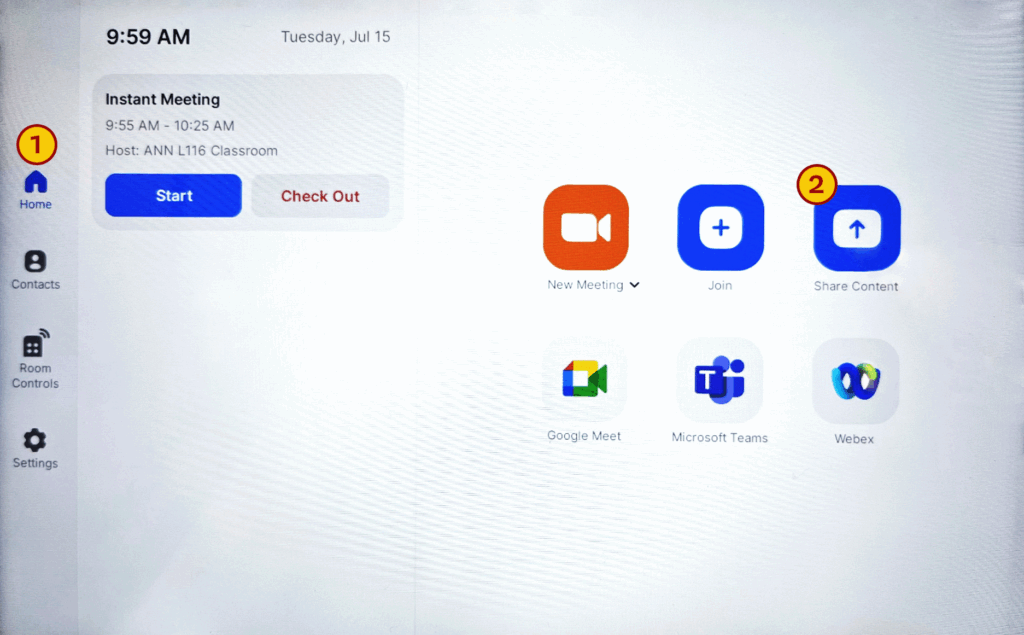
- Tap the Home icon on the menu bar.
- Tap the Share icon.
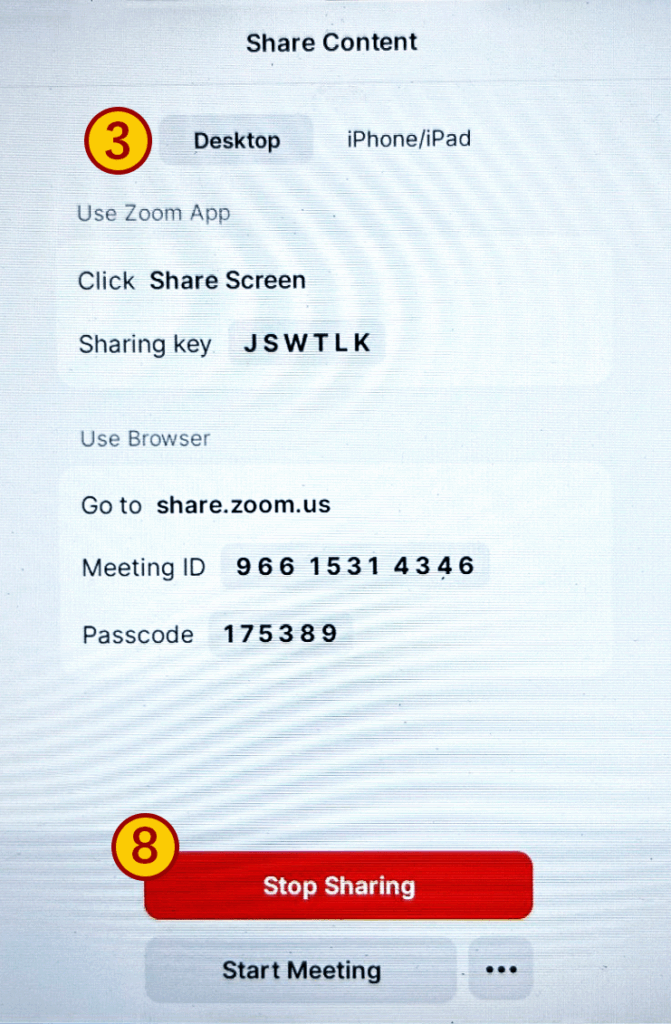
- Choose the device whose screen you want to share.
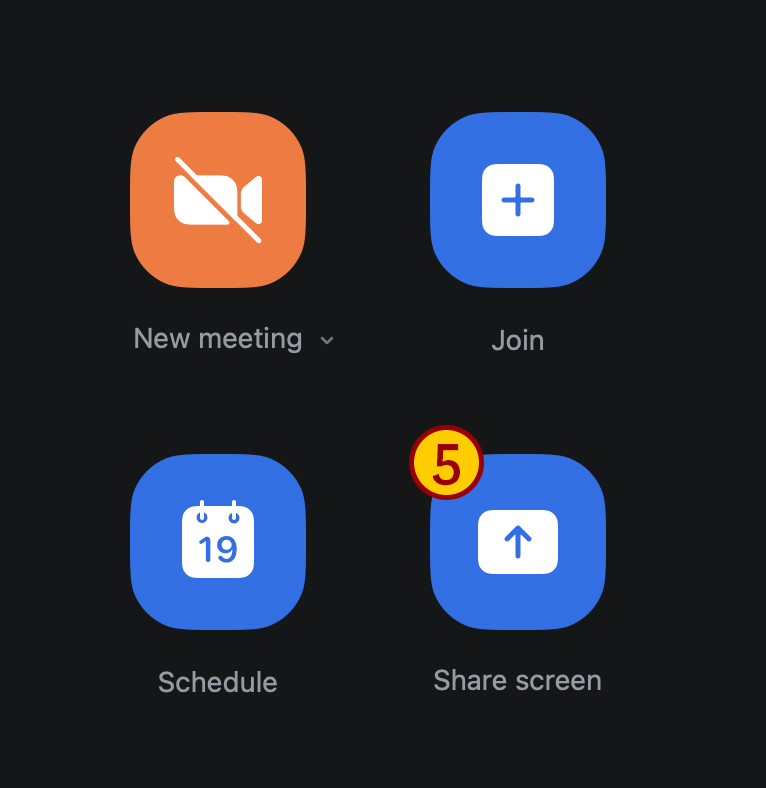
- Open the Zoom app on your device.
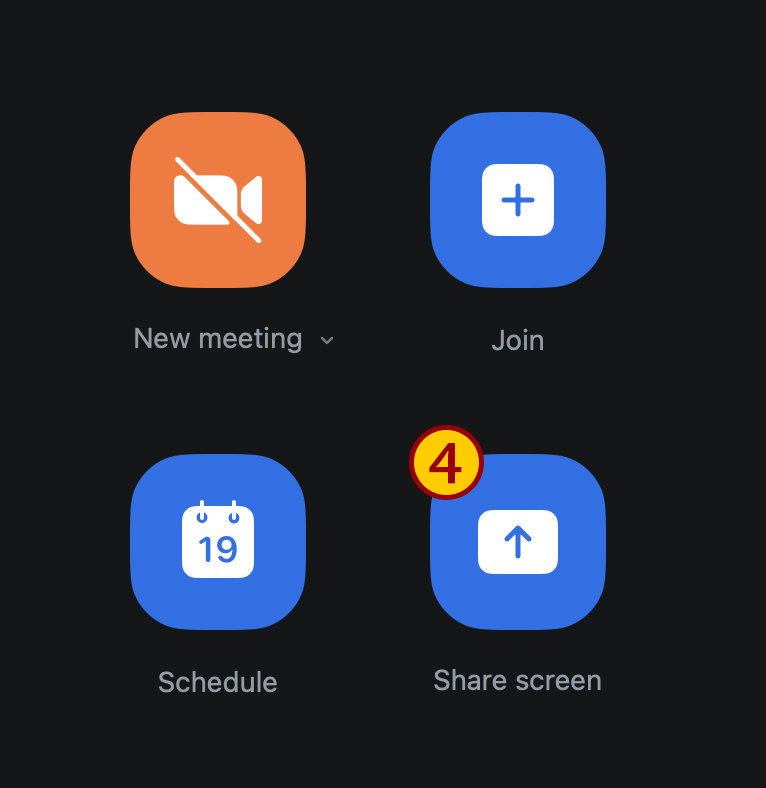
- Click Share Screen.
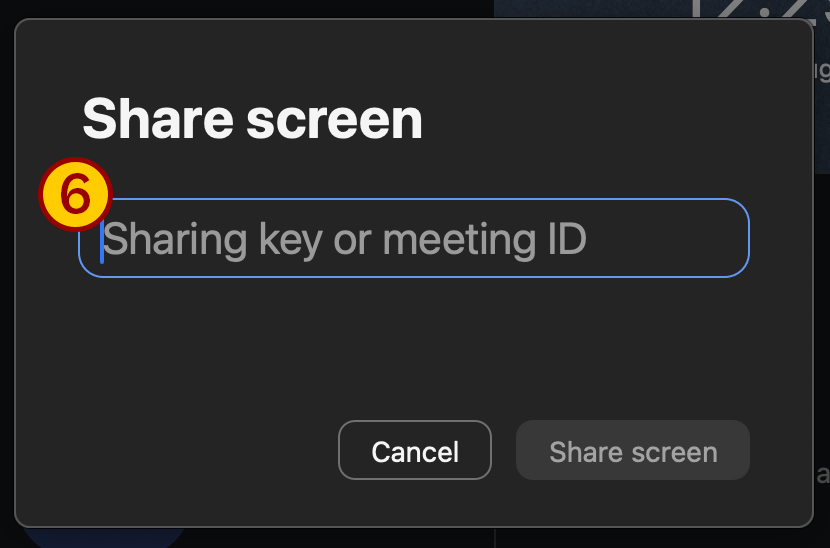
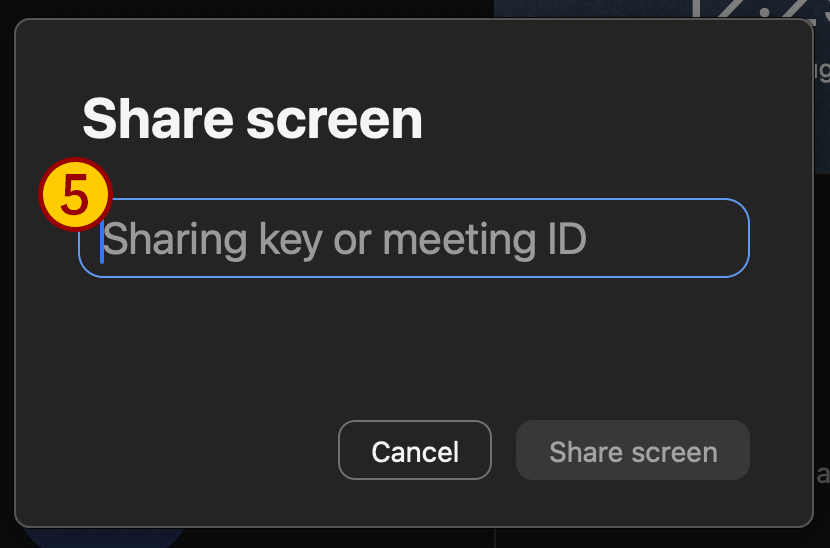
- If prompted, enter the sharing key and click Share Screen.
- Follow the instructions in the pop window.
- Tap Stop Sharing when you are done.
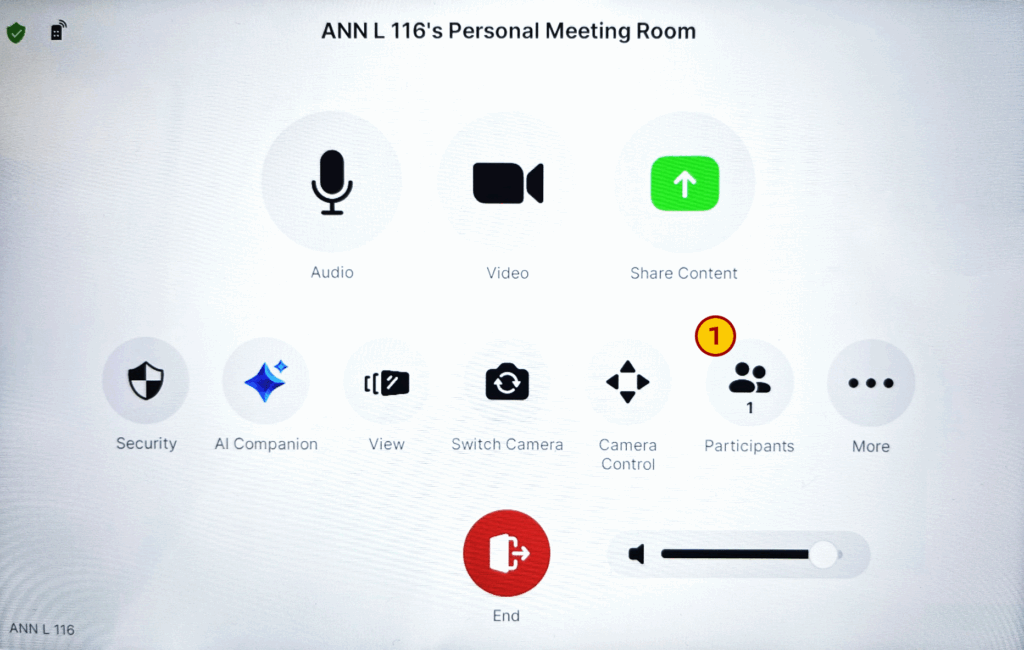
Invite Participants While in a Meeting
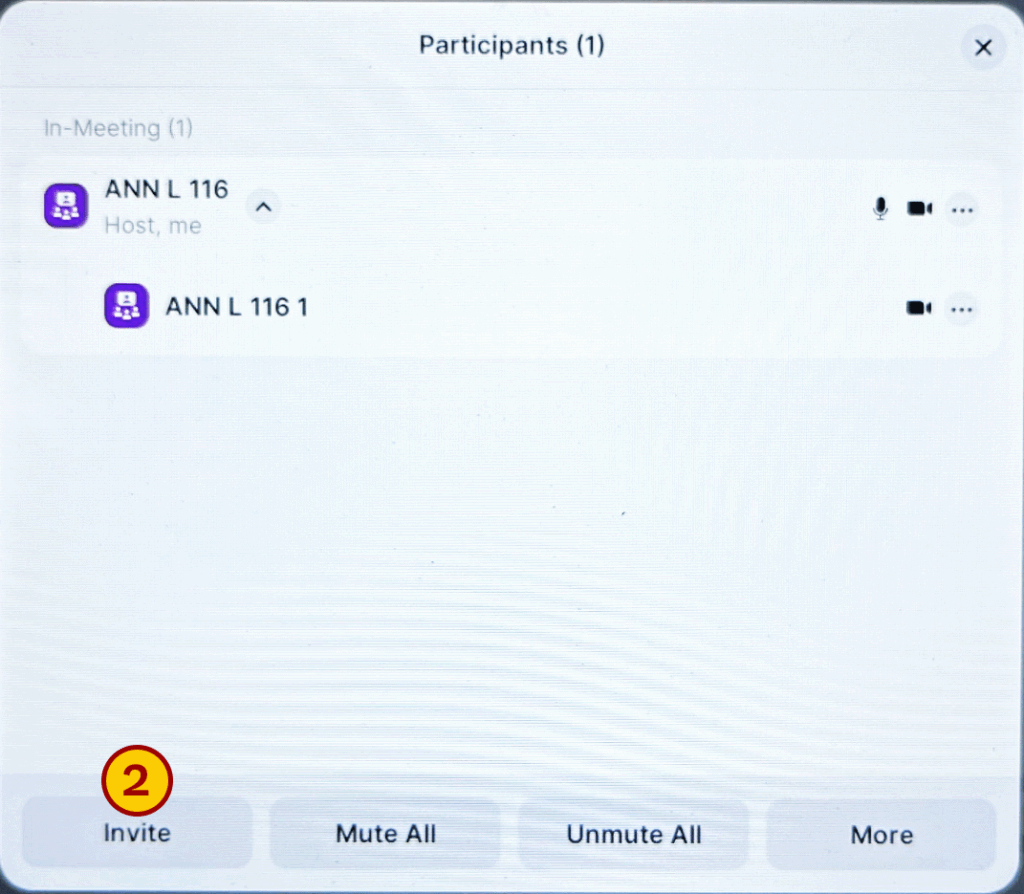
- Tap Participants on the controller.
- Tap Invite.
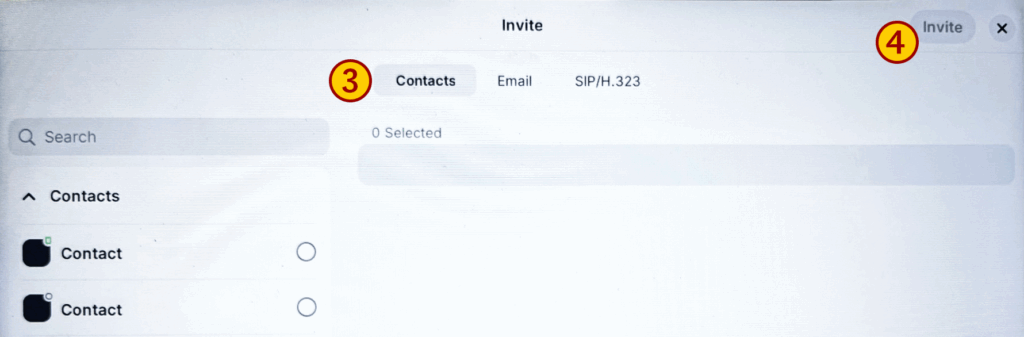
- Select how you want to invite at the top of the pop-up window:
- Contacts: Search by name, or scroll to find rooms, contacts, or SIP/H.323 endpoints.
- Email: Enter the invitee’s email address. Tap Send.
- SIP/H.323: Search by SIP/H.323 endpoints.
- Tap Invite.
Manage Participants as Host
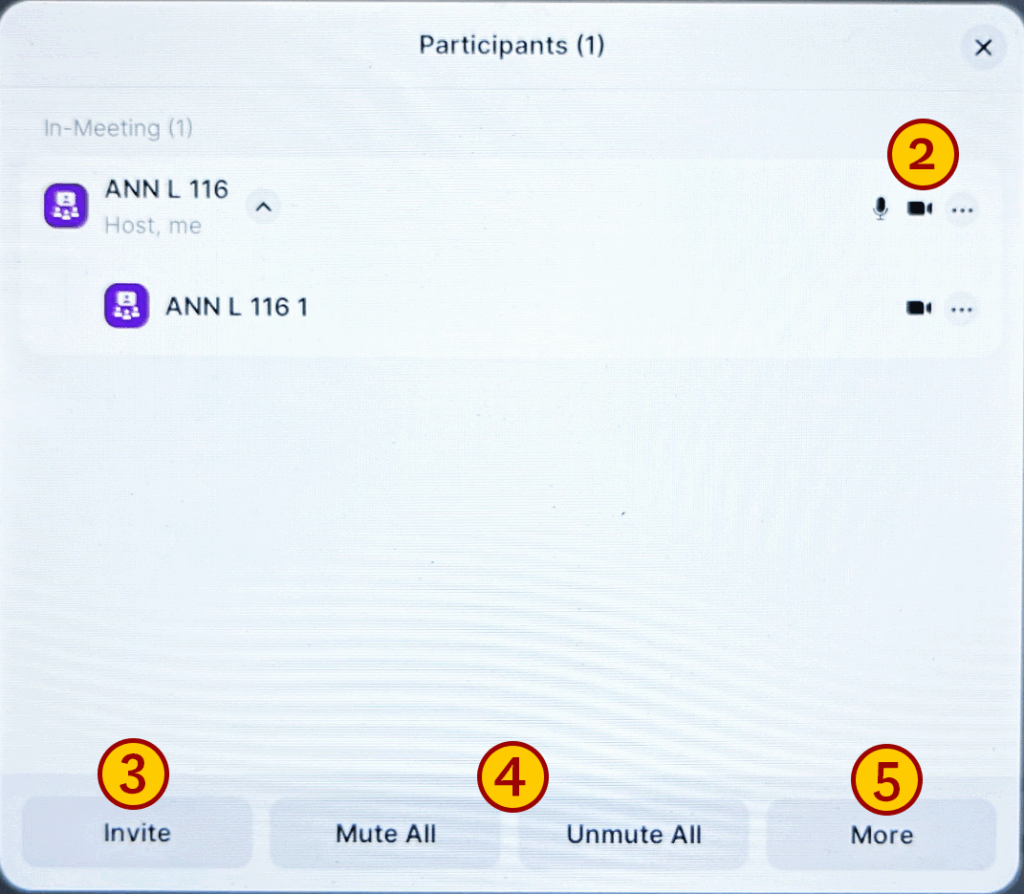
- Tap Participants in the meeting controls.
- Tap the participant’s name to ask them to start or stop their video, pin or spotlight their video, allow them to record, make them the host, or remove them from the meeting.
- Tap Invite to invite participants to the meeting.
- Tap Mute all or Unmute all to mute or unmute all participants, respectively.
- Tap More to select from additional options.
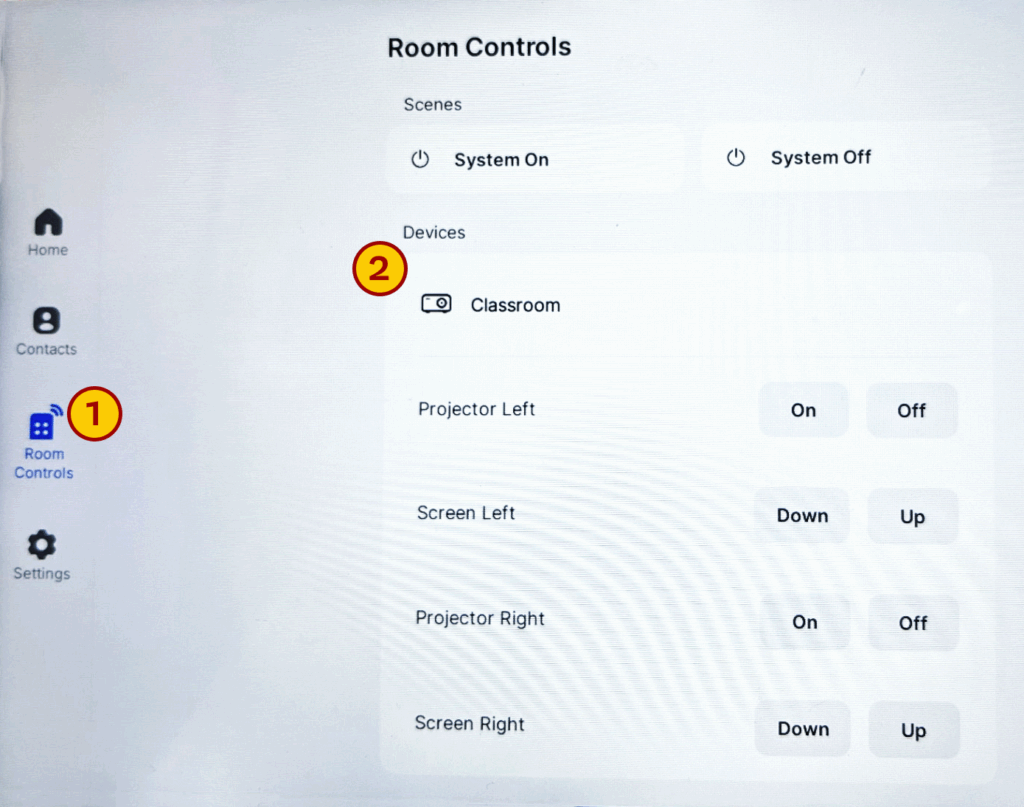
Change Room Controls
- Tap Room Controls in the menu bar.
- If the room has two projectors, you can turn on/off and bring up/down each projector and screen independently.
Turn the System Off
- Tap Room Controls in the menu bar.
- Tap System Off.

Share Content Without Starting a Meeting
An active internet connection is needed.
- Tap the Home icon in the menu bar.
- Tap Share Content.
- Open the Zoom app on your laptop.
- Click Share Screen.
- Enter the sharing key from the meeting room on your device and click Share screen, if prompted. The sharing key is visible on the main screen in the top right corner and on the Home panel under Share Content.
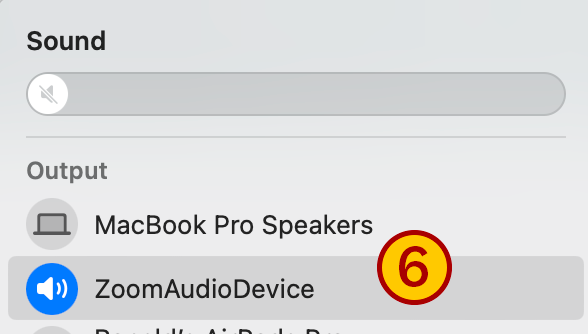
- If your content has audio, confirm your device’s audio output is set to ZoomAudioDevice.
Note: if you are sharing high-definition (HD) video, we recommend you connect to the system directly via HDMI or USB-C, rather than wirelessly.
Connect to the System via HDMI or USB-C
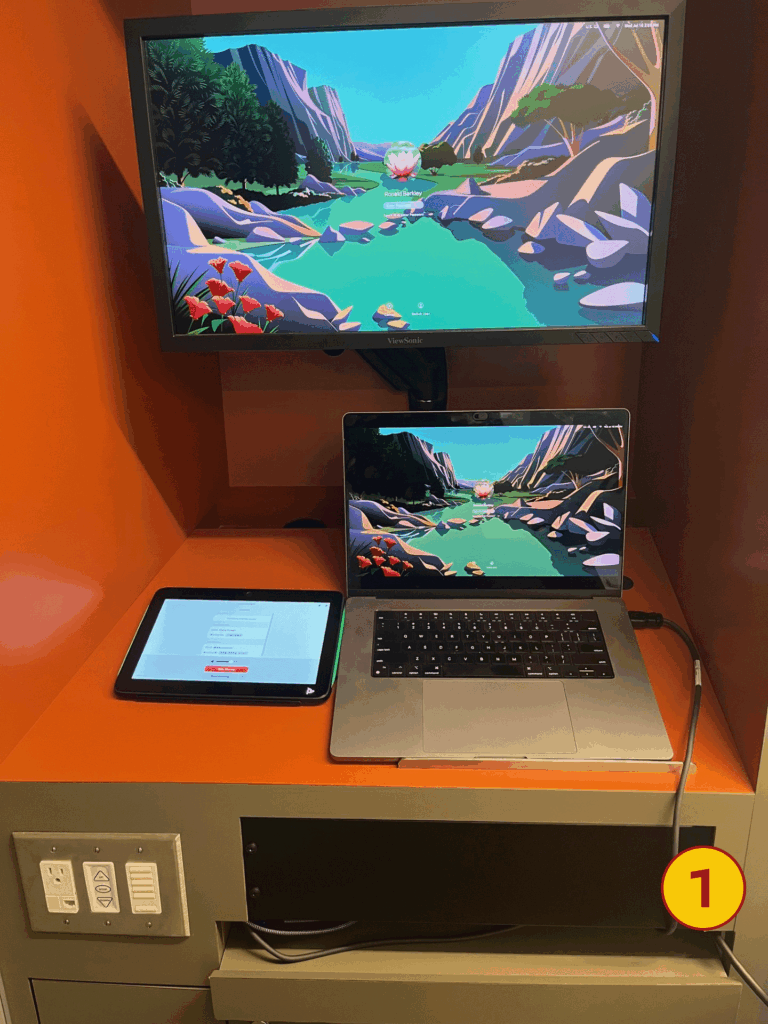
- Connect your device to the room’s HDMI or USB-C cable, located at the tray next to the instructor table.
- Your device should display automatically through the system.
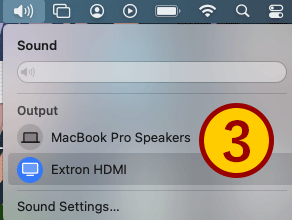
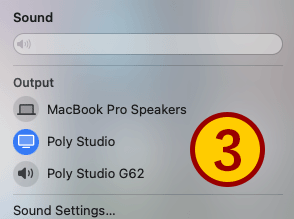
- If your content has audio, confirm your device’s audio output is set to Extron HDMI if you’re connecting via HDMI or Poly Studio if you’re connecting via USB-C.
Frequently Asked Questions
General Use
What’s the quickest way to get started?
Tap the touchscreen controller to wake it. Tap Start Meeting or Join to begin your meeting.
If you just want to share screen, tap Share Content then open your Zoom app and click Share Screen. Type in the sharing key on the touchscreen display to show content.
Alternatively, connect your laptop via an HDMI or USB-C cable to automatically share your screen.
Can I use the room AV without launching a Zoom call?
Yes. Connect your device via HDMI, USB-C, or wirelessly.
Select Share Content on the touch controller to display the Sharing Key. Open your Zoom app and click Share Screen.
Enter the sharing key and your laptop screen will display to the projector.
How do I start a Zoom Room session from the touch controller?
Tap New Meeting to begin an instant Zoom Room session. Tap Participants and then Invite to invite remote guests.
To join a meeting in session, tap Join on the touchscreen and then enter the Meeting ID.
Can I join a meeting using Microsoft Teams or Google Meet?
Yes. The Zoom Room is configured for Microsoft Teams and Google Meet. Join one by tapping the appropriate icon on the home screen.
How do I wake the system up?
Tap the screen to wake the system up.
Which devices can I connect wirelessly to the AV system?
Laptops, tablets, and smartphones via the Zoom app.
Which devices can I connect via wire?
Any device with HDMI or USB-C connections. Use the provided cables on the lectern.
Is my session private?
Yes. Only those participants in your session have access to it. Zoom security requires remote participants either enter a passcode or be admitted into the room by the host.
Why isn’t there a dedicated computer in the room?
The system is designed for personal device use and cloud-hosted Zoom Room control.
Touch Controller Use
What functions are available on the touch panel?
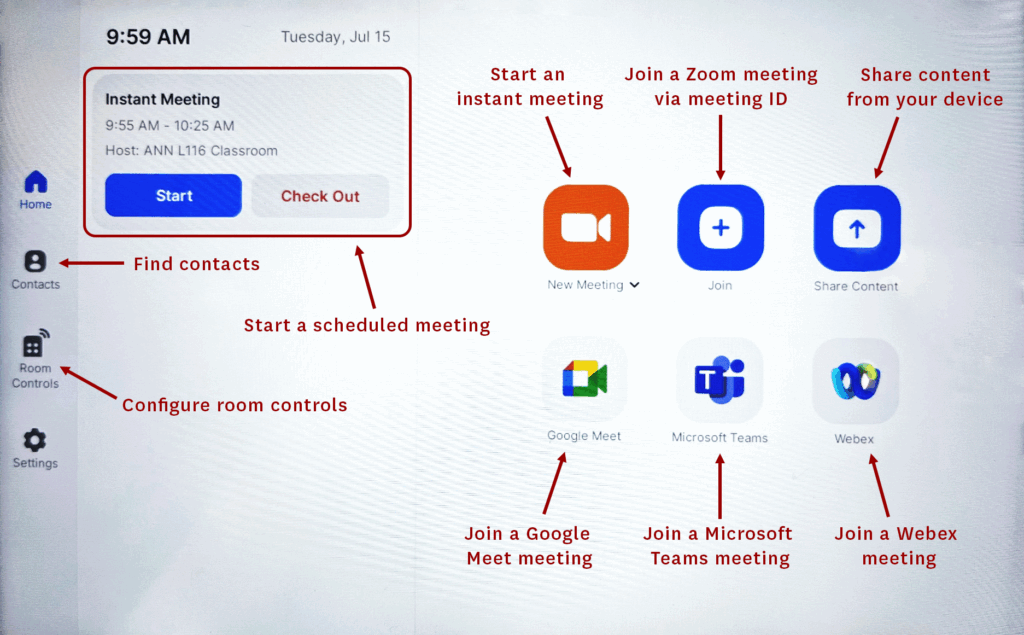
New Meeting: To start a Zoom meeting. You’ll then be taken to another page that has Zoom Room controls.
Join: To join an already scheduled Zoom meeting.
Share Content: To wirelessly share content from your laptop.
Google Meet: To initiate a Google Meet meeting.
Microsoft Teams: To intiate a Teams meeting.
WebEx: To initiate a WebEx meeting.
Contacts: A list of contacts in the USC environment.
Room Controls: Turn the projector or system on/off.
How do I switch between video inputs (laptop, document camera, etc.)?
Only one device can be shared a time. Unplug the HDMI or USB-C cable from the first device and plug it into the other device.
If displaying wirelessly, click Stop Share on the device you’re currently sharing from, then enter sharing key on the other device.
How can I control the projection screen, lighting, or room volume?
The projector screen automatically turns on when you initiate a session on the touchscreen. You can also turn on/off the projection screen in the Room Controls screen.
Lighting is controlled via a six-button wall panel close to the lectern.
Volume is adjustable on the touchscreen.
How do I shut down the system?
- Tap Room Controls on the home screen.
- Tap System Off.
Remote Calls & Hybrid Sessions
How do I join an existing Zoom call?
Tap Join on the touchscreen and enter the Meeting ID and passcode.
If you pre-scheduled your meeting, use the Start button on the appropriate meeting in the meeting list.
How do I create a new Zoom call?
Tap New Meeting on the touchscreen or use your device to schedule a call.
Invite the Zoom Room by its room name. For example, ANN 106 is named “ANN 106”.
How do I join a Google Meet call?
Use a laptop to schedule or join the call and share it via HDMI, USB-C, or wirelessly to the room display. Tap the Google Meet icon on the touchscreen and enter the meeting code to add the room to your session.
How do I join a Teams call?
Use a laptop to schedule or join the call and share it via HDMI, USB-C, or wirelessly to the room display. Tap the Microsoft Teams icon on the touchscreen and enter the meeting ID and passcode to add the room to your session.
How do I invite guests to my Zoom call?
While in the Zoom meeting, tap Participants on the touchscreen and invite contacts via the contact list or by entering their email. You can also use your laptop’s Zoom app to invite by name or email.
How do I remove guests from my Zoom call?
While in the Zoom meeting, tap Participants on the touchscreen, tap the guest to select them, and then tap Remove.
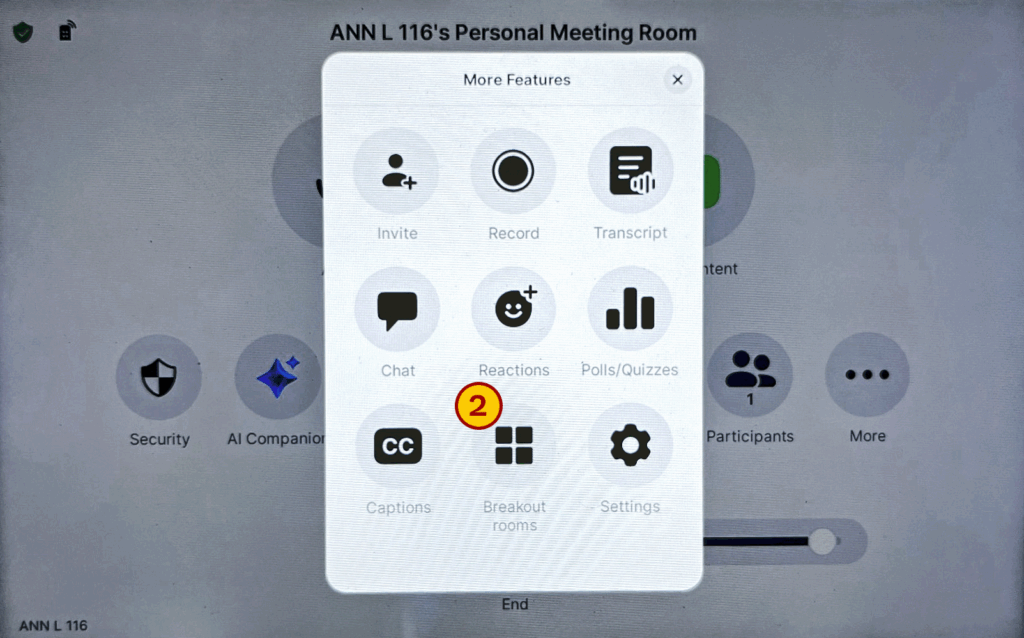
Can I set up breakout rooms from the touchscreen controls?
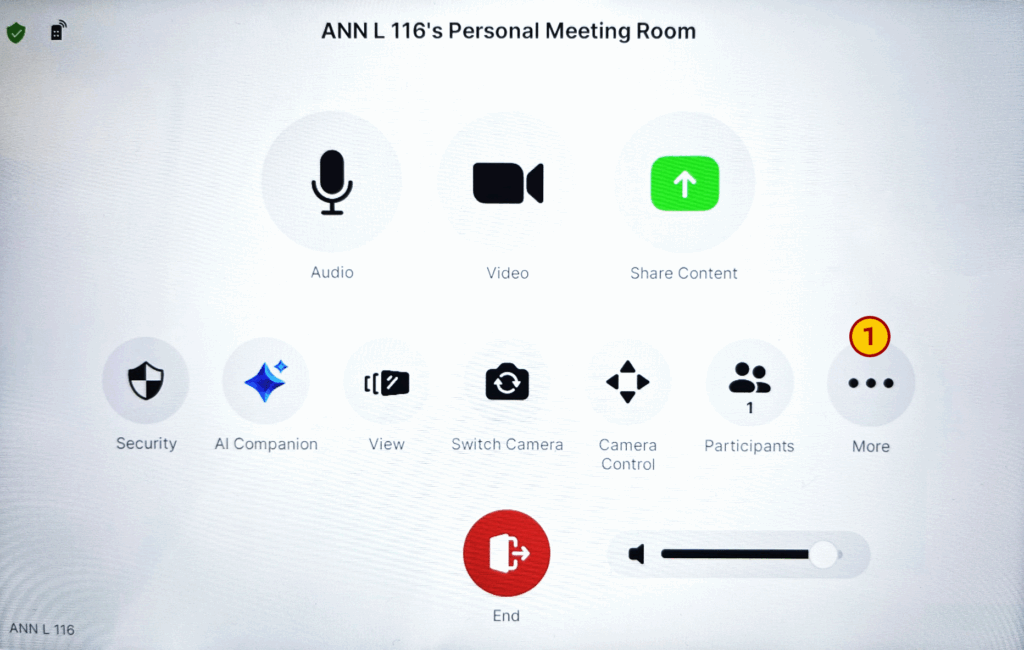
Yes. While in a meeting:
- Tap More.
- Tap Breakout rooms.
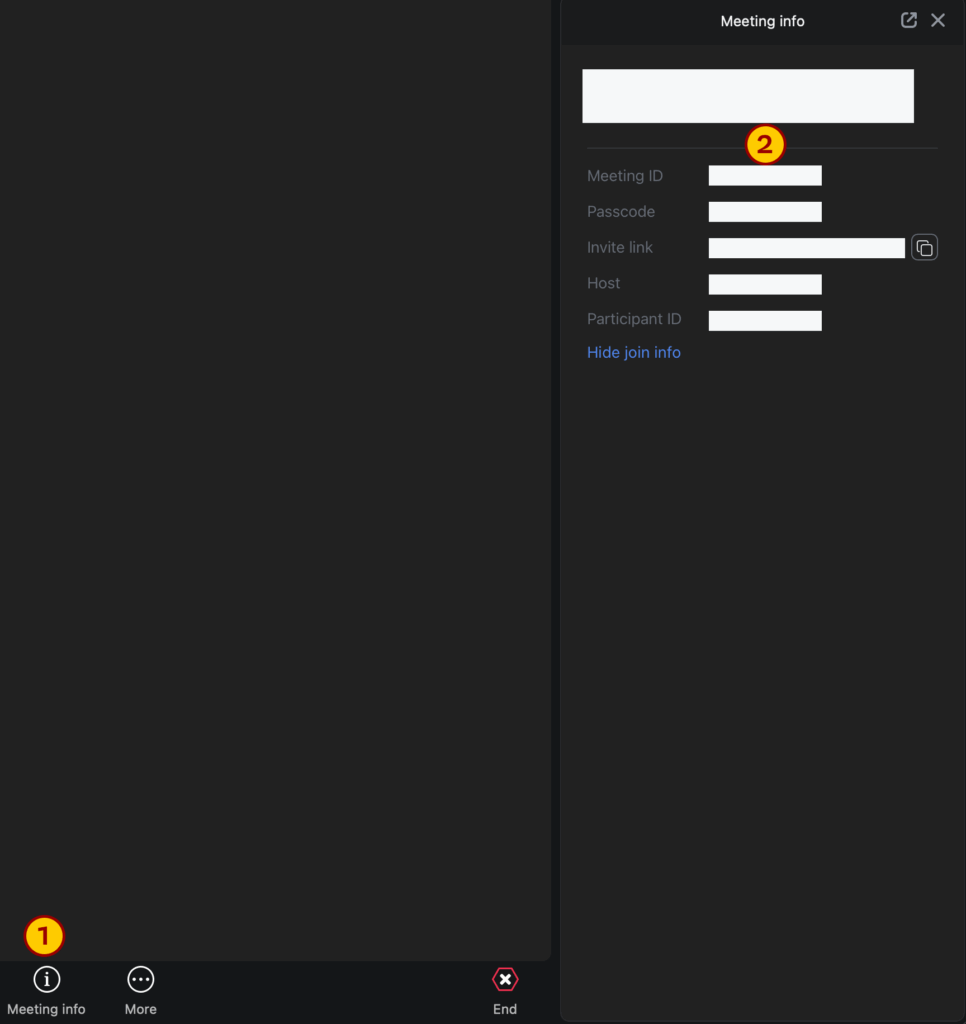
Where can I find my Zoom call’s Meeting ID and password?
- Click Meeting info in the Zoom app on your device. Note: this may be in your More button menu.
- Locate your Zoom meeting’s meeting ID and password.
Camera & Audio Controls
How do I adjust the camera angle or switch views?
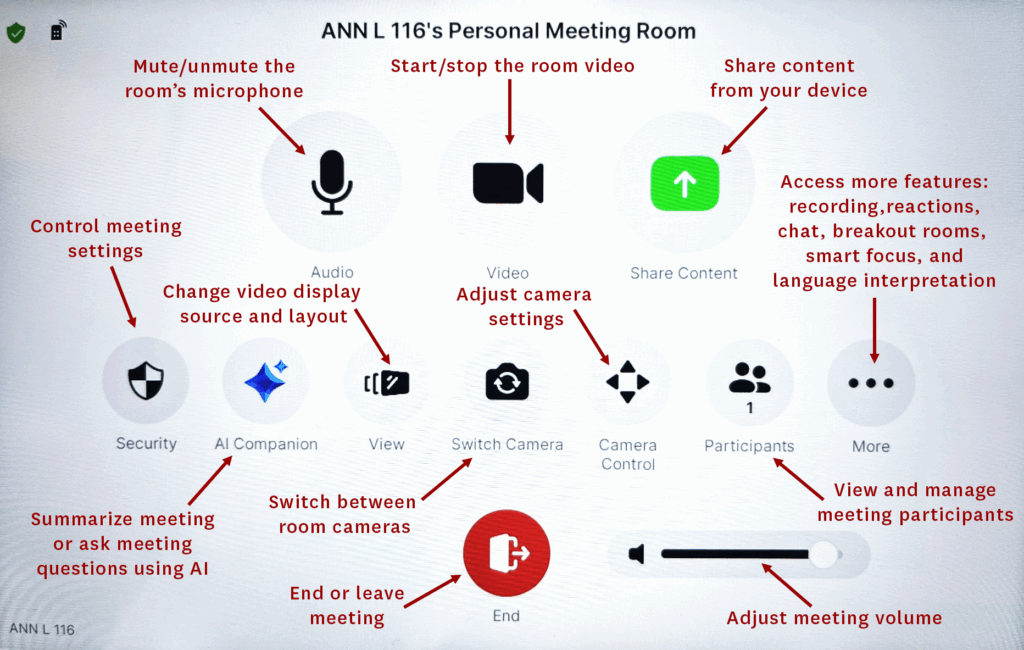
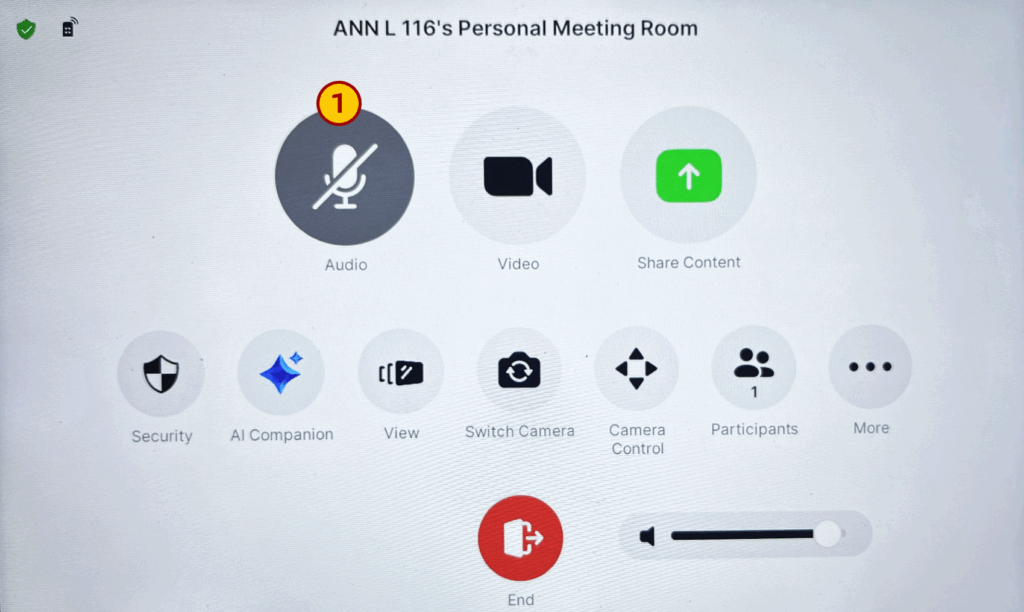
Once a meeting has been initiated, tap Camera Control on the touchscreen to adjust the camera angle. Tap Switch Camera to switch camera views.
How do I mute/unmute the room microphone?
Once a meeting has been initiated:
- Tap the microphone icon on the touchscreen. The icon will have a line through it to indicate it’s muted.
How do I adjust the volume of Zoom participants?
Once a meeting has been initiated, slide the touchscreen volume slider in the bottom right corner.
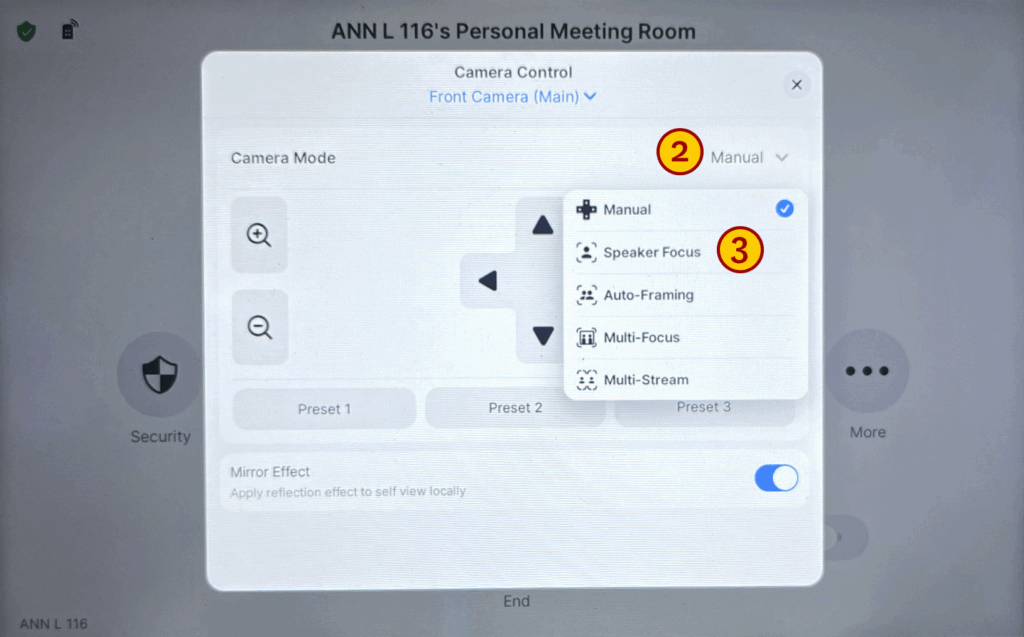
What should I do if the camera doesn’t follow the speaker?
Once a meeting has been started:
- Tap Camera Control on the touchscreen.
- Tap the Camera Mode dropdown.
- Tap Speaker Focus.

Device Connectivity
How do I connect my laptop via HDMI?
Use the HDMI cable on the lectern. Content will display automatically.
How do I connect my laptop wirelessly?
From your laptop’s Zoom app, click Share screen. If prompted, enter the Sharing key that’s shown on the touchscreen when you tap Share Content.
Is there a USB-C port available for direct connection?
Each classroom has an HDMI and USB-C cable.
Can I share content from my phone or tablet?
Yes, you can plug in using the provided cable or share wirelessly via the Zoom app.
Do I need special adapters for my MacBook or iPad?
Each room has an HDMI and USB-C plug in. If you have a different connection type, you’ll need an adapter.
How do I show media content like streaming audio and video?
Connect via HDMI or USB-C for optimal performance. If via HDMI, select Extron HDMI as the audio source on your laptop. If using USB-C, select Poly Studio.
You can also share wirelessly, however anything copyright protected, such as streaming movies and videos, only plays via HDMI.
How do I play legacy media like DVDs/Blu-Rays?
Contact TechOps at (213) 740–5297 or asctech@usc.edu. They can arrange for a blu-ray player to be provided and help connect.
Scheduling
How do I pre-schedule my Zoom meeting for a Zoom Room?
Invite the Zoom Room’s name when scheduling via the Zoom app on your device:
- Click Participants.
- Click Invite.
- Click Zoom Rooms.
- Search for and select the room.
- Click Invite.
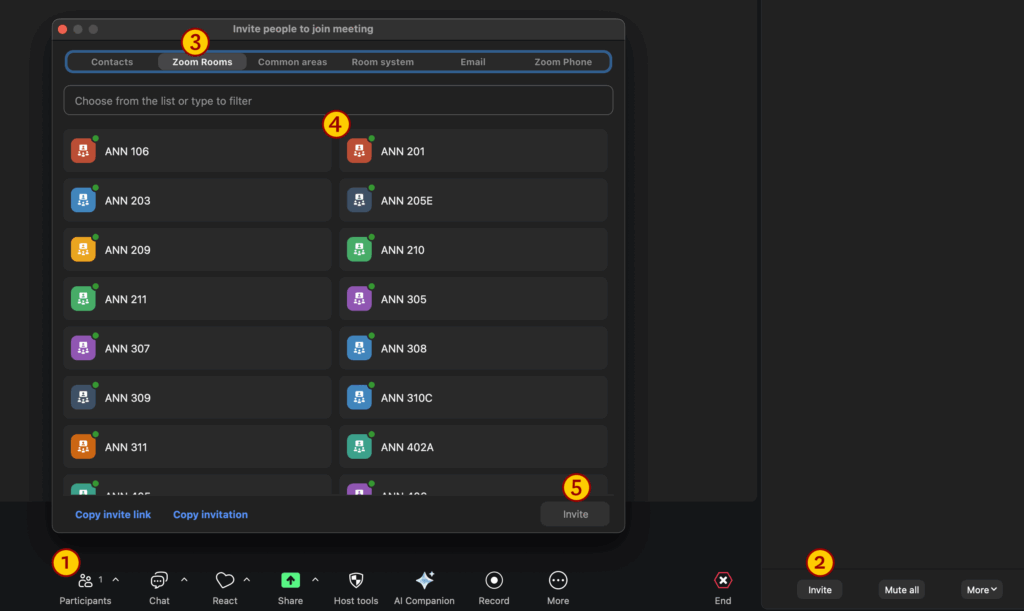
When scheduling in Outlook, search for the room in the Invite attendees field and add it as a required guest. The room can be found by searching for the room code, for example, “ann305”.
Put your Zoom meeting link in the Add a room or location field.
Can I schedule a Zoom Room in my USC Outlook 365 Calendar?
Yes. Add the room to your event as an invitee and enter your Zoom meeting link.
To find the room in Outlook, search for the building code (“ann”), room number (“118”), room type (“conf” or “class”), and “@resources.usc.edu“.
Here are two examples showing the syntax of the rooms as they appear in Outlook:
- Conference rooms: ann118conf@resources.usc.edu
- Classrooms: ann118class@resources.usc.edu
Will my Zoom Room be ready when I arrive?
If you scheduled a Zoom meeting and included the room as a guest, the meeting will display on touchscreen. Tap Start to begin the Zoom session.
Troubleshooting
Why isn’t my Mac playing audio?
Ensure sound output is set to Extron HDMI if connected with an HMDI Cable, Poly Studio if connected with a USB-C cable, and ZoomAudioDevice if connected wirelessly.
Why isn’t my streaming video playing wirelessly?
Copyright streaming video is blocked wirelessly. Connect with the HDMI or USB-C cable for streaming content.
Why isn’t my shared content showing on the projector?
Check that you’re connected to WiFi and entered the correct sharing key.
Call TechOps at (213) 740–5297 or email asctech@usc.edu if problem persists.
Why can’t I hear remote participants?
Ensure the system volume is up and room speakers are not muted. Ask remote participants to unmute their mics.
Call TechOps at (213) 740–5297 or email asctech@usc.edu if problem persists.
What do I do if the touch panel freezes?
Call TechOps at (213) 740–5297 or email asctech@usc.edu.
Why is the Zoom Room not joining my scheduled meeting?
Ensure you selected the correct room on your meeting invite.
Call TechOps at (213) 740–5297 or email asctech@usc.edu if the problem persists.
How do I report a problem with the AV system?
Call TechOps at (213) 740–5297 or email asctech@usc.edu.
System Features & Flexibility
Can the system be used for hybrid classes?
Yes. Simultaneous in-room and remote participation is supported with Zoom.
Are all classrooms set up the same way?
Core technical functions are consistent, but the room layout and number of projectors and screens may vary.
Can I record a session using the in-room system?
Yes. When in a Zoom meeting:
- Tap More.
- Tap Record.
- Enter the email address to which you want to send the recording.
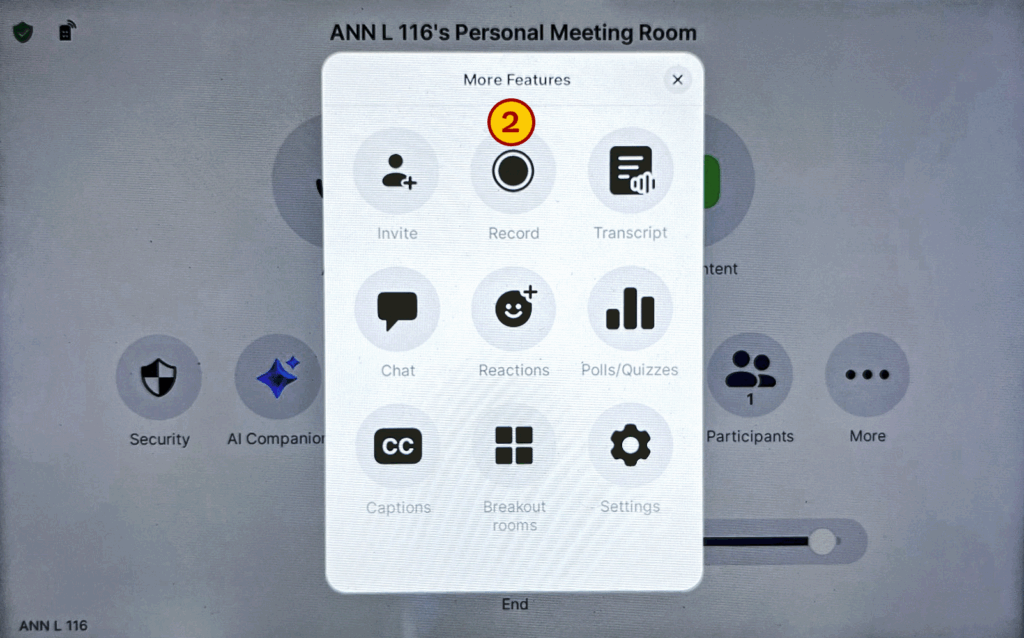
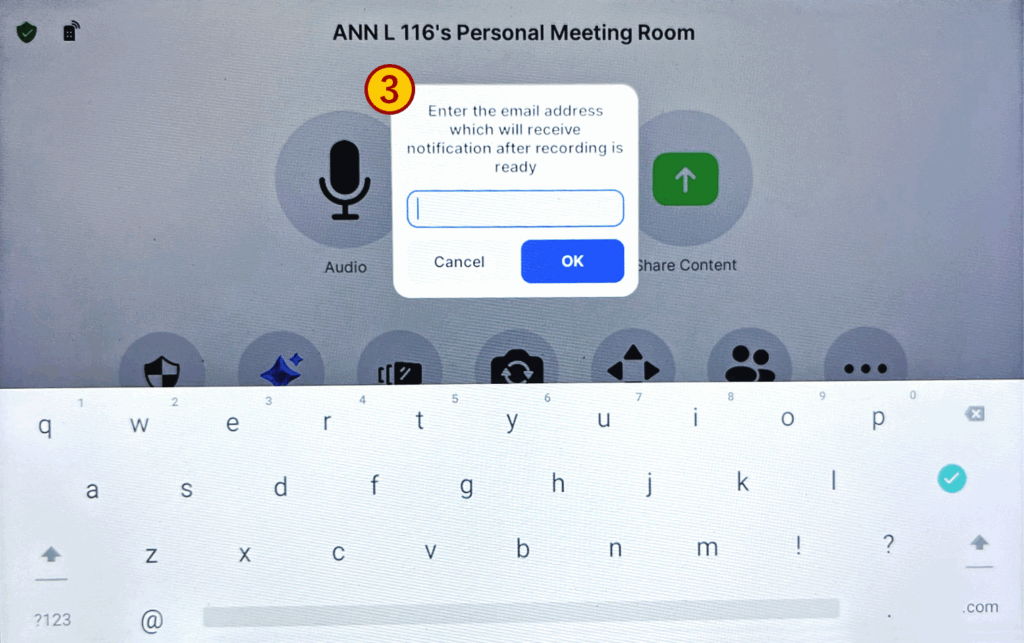
Alternatively, if you are a host or co-host and are connected to the Zoom Room with your own device, you can record using the Zoom app on your device.
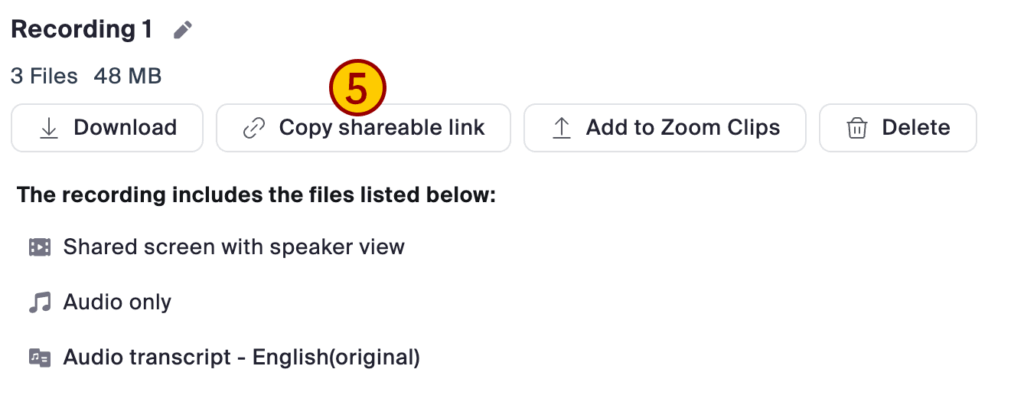
How can I share my recording?
You can copy a shareable link from your Zoom account on a web browser:
- On your computer, go to https://usc.zoom.us.
- Click Sign In and sign in with your USC credentials.
- Click Recordings & Transcripts.
- Click on the video file.
- Click Copy shareable link.
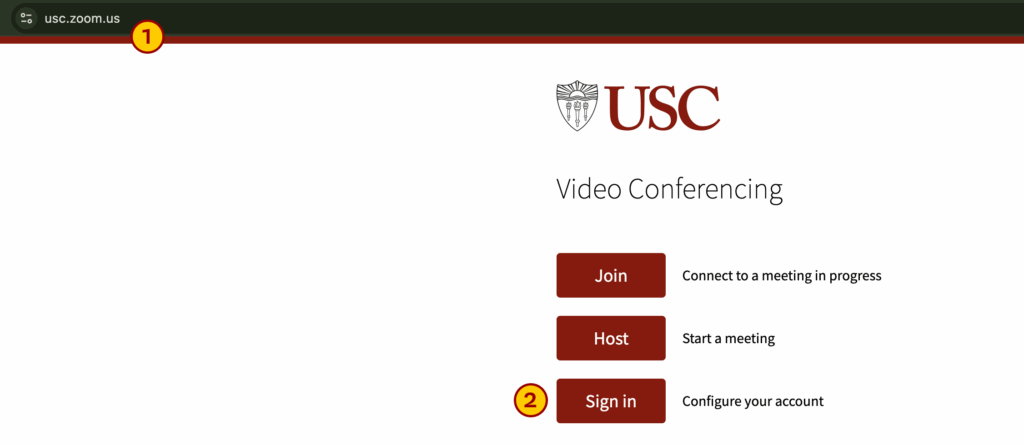

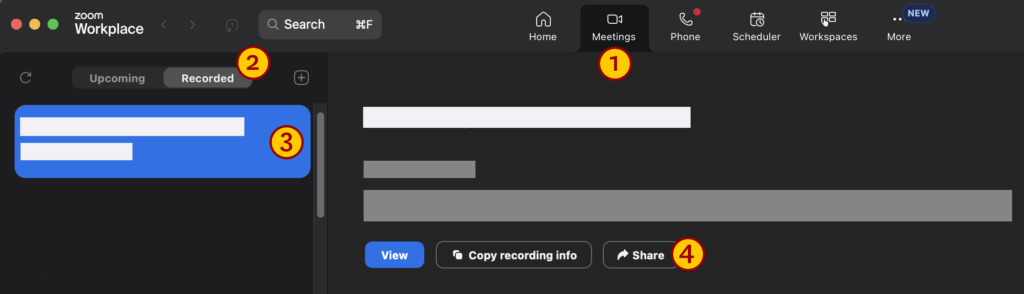
Alternatively, you can share the recording from the Zoom app on your device:
- In the Zoom app, click Meetings.
- Click Recorded.
- Select the recording.
- Click Share.
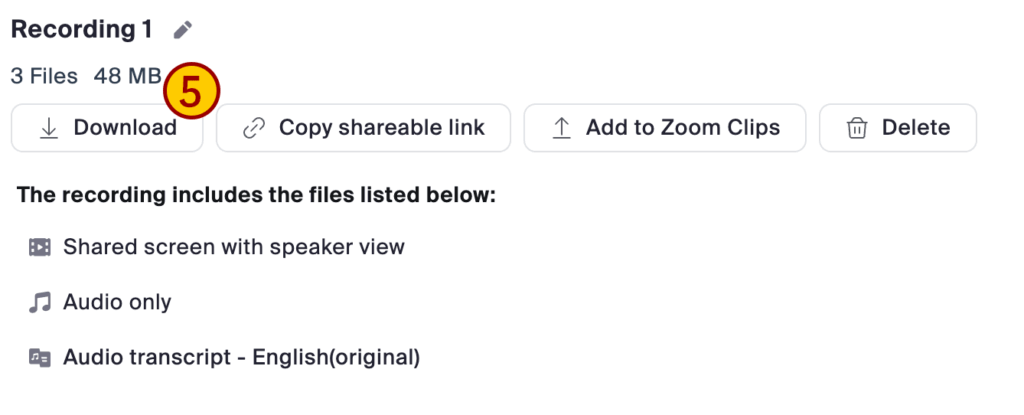
How can I download my recording?
- On your computer, go to https://usc.zoom.us.
- Click Sign In and sign in with your USC credentials.
- Click Recordings & Transcripts.
- Click on the video file.
- Click Download.
Is the system compatible with future AV platform upgrades?
Yes. The setup uses scalable Zoom Room infrastructure and standards-based connections.